| Drawing a Straight Line in Photoshop
First, select the
pen tool .
Then follow these
simple steps....
1. Choose
where you want the line to being and position the pen pointer there.
Click the pointer
to set the first anchor point.
This point should
stay solid until you set the next point.
2. Click again
where you want the first segment to end.
You can also use Shift+click
together to move the angle of the line in multiples of 45 degrees.
3. Continue clicking
to set more anchor points for more line.The last point is always a square.This
shows you that it's selected.
As you add more anchor
points, previous points will become hollow inside.
4.You can click
to remove an existing point if the Auto Add/Delete has already been selected
selected.-There, see how easy it is once you know how!
|
About the Filters Above
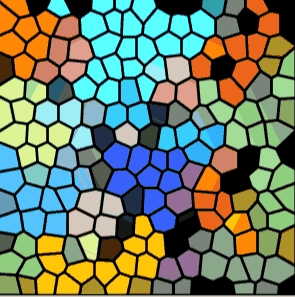
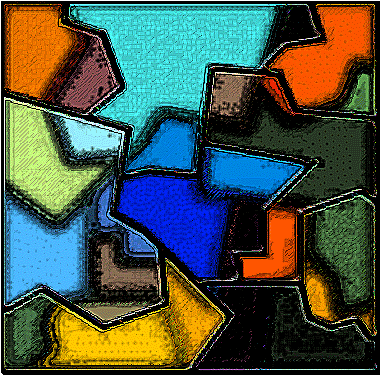
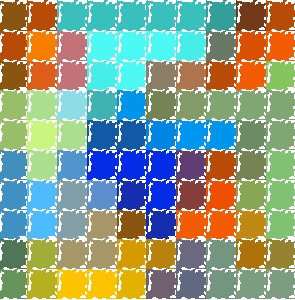
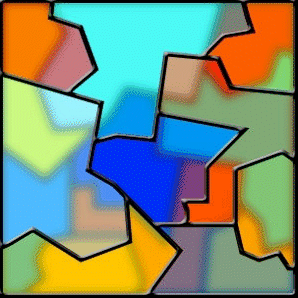
Each of these filters takes a single click
to apply. You can find lots of free filters on the net (even more
to buy if you must) please see our resources
page for both kinds
.
"Filter Finger", (too much clicking in
the filter list) is an occupational hazard peculiar to designers and a
syndrome akin to the child with a new toy that comes with lots of accesories
and who must investigate every possible combination. Some really
obsessed artsy types can't stop until they have tried every known combination
of filters in Photoshop because they are afraid they will have missed
the "perfect" visula effect for whatever project got them to venture into
the filter list in the first place. It's a great place to play but you
really wouldn't want to spend more than a few hours there unless you don't
mind crampled fingers and other parts.
Each of the filter effects above was a
one filter shot. However, you could add one filter and then add another
and another etc., so the mathematical possibilities are pretty awesome.
Using the same filters in a different order will get you a get a very different
effect. Many times it's impossible to get the same effect twice because
you forget the sequence - oh well, next time I'll write 'em down.
|